
Learn how to showcase your products with compelling visuals in a gallery, and effortlessly publish them for potential customers to explore and purchase. Elevate your e-commerce experience with this concise walkthrough on adding products to WooCommerce.
- Login to WordPress Dashboard:
- Navigate to your WordPress admin dashboard by adding “/wp-admin” to the end of your website URL (e.g., www.yourwebsite.com/wp-admin).
- Log in with your username and password.
- Access WooCommerce Products:
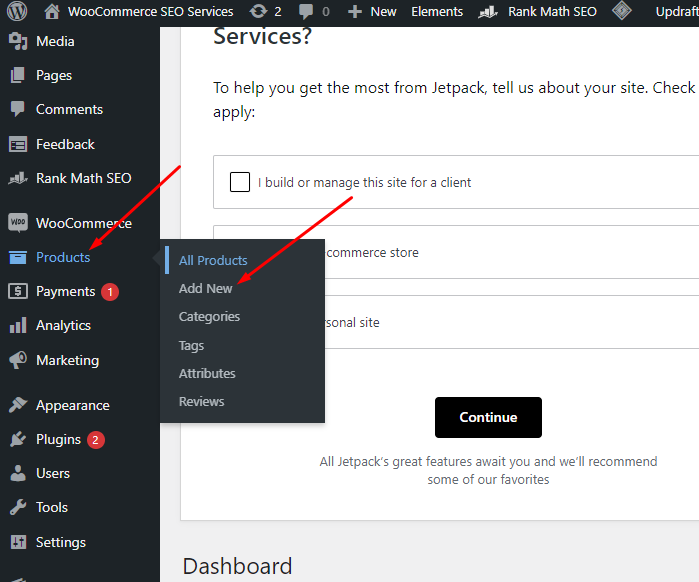
- On the left-hand sidebar, locate and click on “WooCommerce.”
- Navigate to Products:
- Once in the WooCommerce section, find and click on “Products.”
- Add a New Product:
- In the Products screen, click the “Add New” button at the top.
- Enter Title and Description:
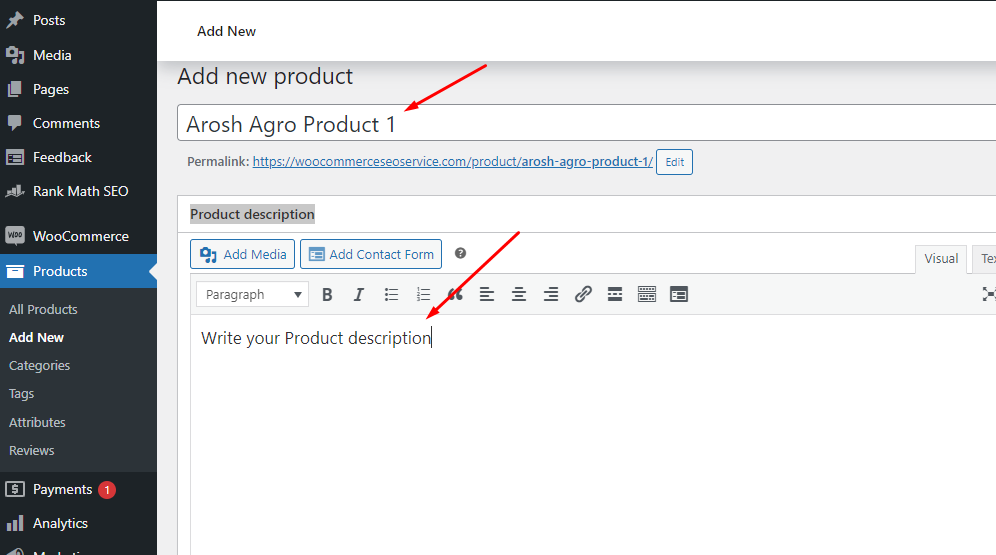
- Provide a title for your product in the designated field.
- Add a detailed description in the text editor below the title.
- Add Main Product Images:
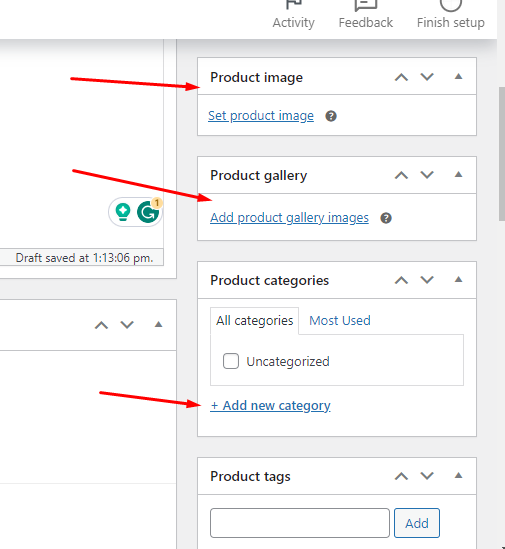
- Scroll down to the “Product Image” box.
- Click “Set product image” to upload the primary image representing your product.
- Add Multiple Images in Gallery:
- Still in the product editor, find the “Product Gallery” box.
- Click on “Add product gallery images” to upload additional images for a gallery.
- Assign Product Categories:
- Look for the “Product Categories” box on the right side.
- Check the relevant categories for your product or create new ones.
- Set Price and Discount Price:
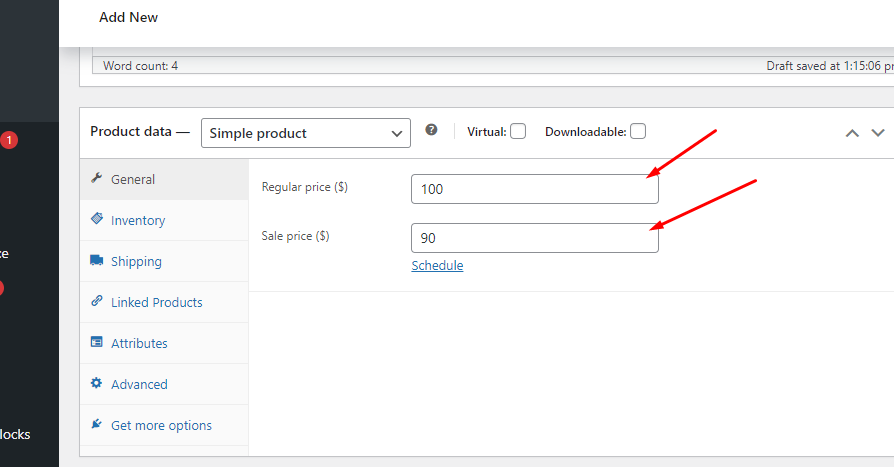
- In the “Product Data” section, go to the “General” tab.
- Enter the regular price in the “Regular Price” field.
- If applicable, set a discounted price in the “Sale Price” field.
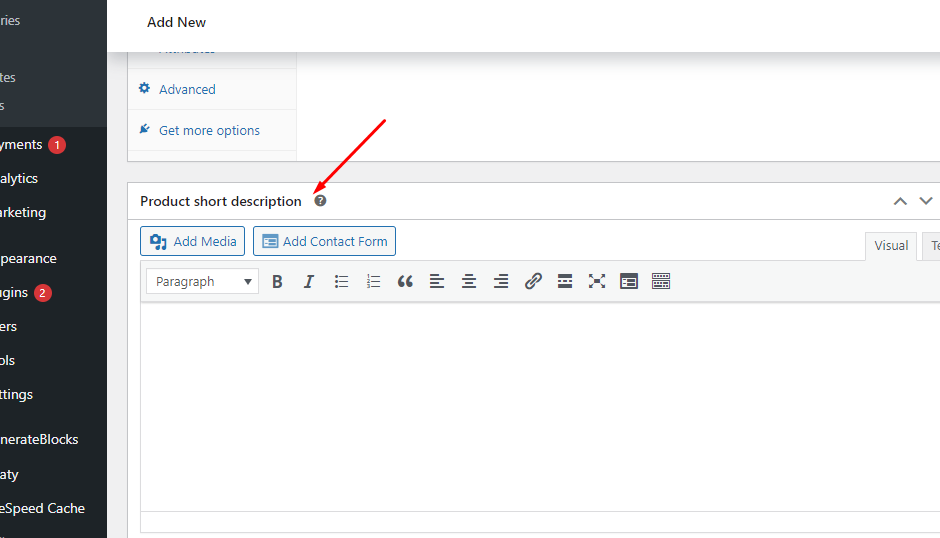
- Add Product Short Description (Point by Point):
- Scroll down to the “Product Short Description” box.
- Provide a concise, point-by-point summary highlighting key features or selling points.
- Publish Your Product:
- Once you’ve filled in all the necessary information, click the “Publish” button on the right side.
Congratulations! You’ve successfully added a product to WooCommerce. Visitors can now view and purchase your product on your online store.
Encountering challenges? Unlock the power of expert WooCommerce SEO services! Connect with me for a complimentary consultation – let’s transform your online store together.
Stumbling upon this site was a game changer for my weekends. The live chat agents are friendly and always speak in plain language, making complex rules easy to grasp. I love the weekly reload bonuses and how fast the app loads on slower connections. Truly a player friendly environment. brhhwin
The poker software runs flawlessly even during peak hours when the tables are completely packed. I really appreciate the low rake structure and how frequently they run satellite tournaments for major events. The chat feature adds a nice social touch and I have actually met some great people through this community. Keep up the amazing work. vnv8poker